
- What Is Magento 2 Theme Development and Why It Matters
- Prerequisites Before Starting Magento 2 Theme Development
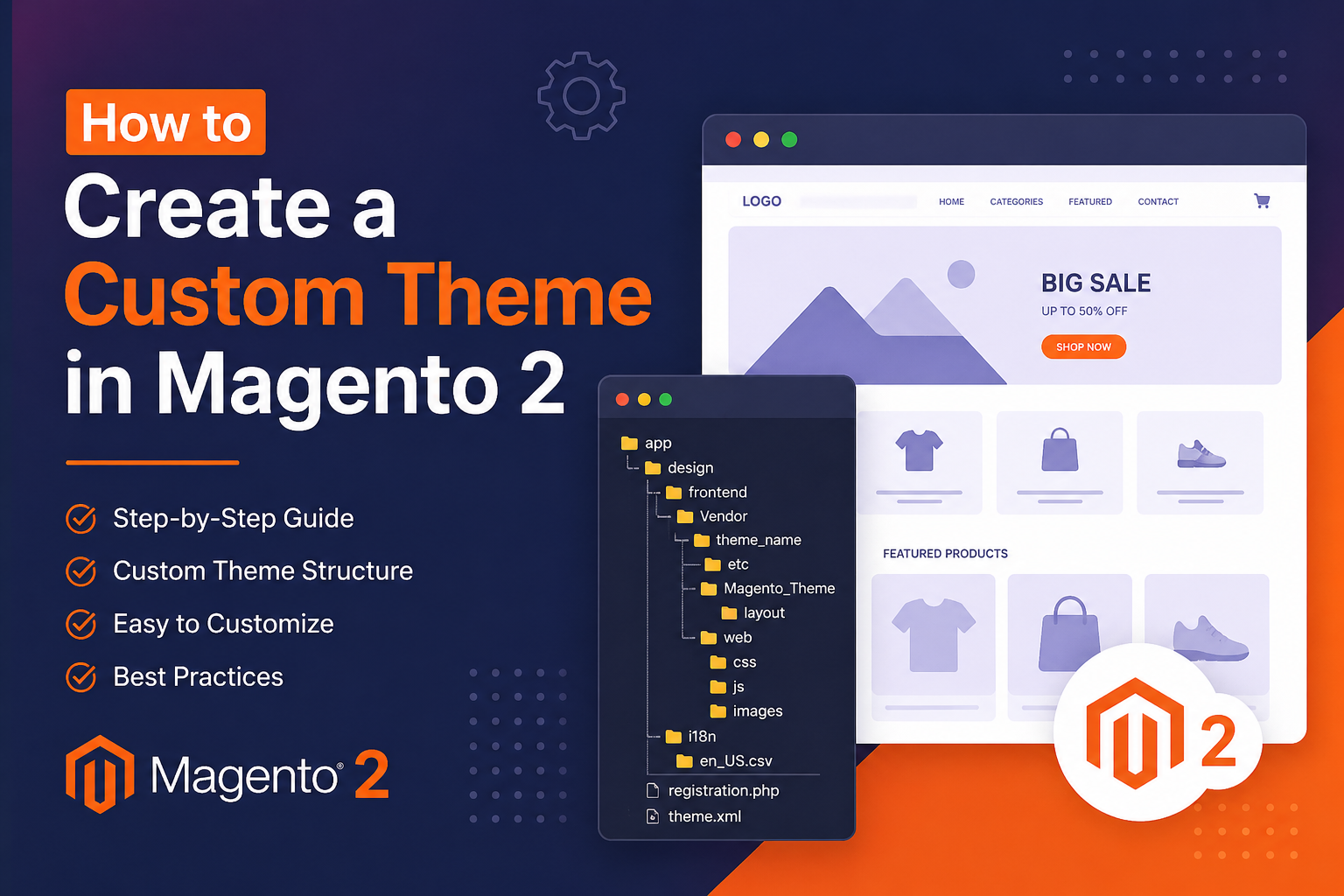
- Understanding Magento 2 Theme Architecture
- Step-by-Step Guide: How to Create a Custom Theme in Magento 2
- Magento Theme Customization: Overriding Specific Components
- Installing a Magento 2 Theme from the Marketplace
- Common Magento 2 Custom Theme Development Mistakes to Avoid
- When to Hire a Magento Theme Development Company
- Summary
Your Magento 2 store’s appearance directly affects customer trust, conversion rates, and brand perception. A generic or poorly customized storefront costs you sales. That is why understanding how to create a custom theme in Magento 2 is one of the most valuable skills any Magento developer or store owner can have.
This guide walks you through the complete process of Magento 2 theme development, from setting up your directory structure to registering and applying a fully functional custom theme. Whether you are a developer building from scratch or a store owner looking to understand the process before hiring a Magento theme development company, this guide gives you everything you need.
What Is Magento 2 Theme Development and Why It Matters
A Magento 2 theme controls every visual element of your storefront, layouts, typography, colors, page templates, and component styles. Unlike plugins or modules, a theme does not change store functionality. It changes how that functionality looks and feels to the customer.
Magento 2 theme development matters for three core reasons:
- Brand consistency: A custom theme ensures your storefront matches your brand identity precisely, something no out-of-the-box theme can fully deliver.
- Performance control: Custom themes are leaner. You include only what your store needs, which leads to faster load times and better Core Web Vitals scores.
- Competitive differentiation: A unique storefront helps you stand out in a market where thousands of stores run on the same default Luma or Blank themes.
Custom Magento development gives you full control over the customer experience from the first page load to checkout.
Prerequisites Before Starting Magento 2 Theme Development
Before you create a custom theme in Magento 2, confirm that your development environment meets the following requirements:
- Magento 2 installed: Any supported Magento 2 version (2.3 or later recommended)
- PHP: Version compatible with your Magento installation (check official Magento compatibility matrix)
- Composer: For dependency management
- Command line access: You will run Magento CLI commands throughout this process
- Basic knowledge of: XML, PHP, HTML, CSS (LESS is used in Magento 2’s frontend), and Magento’s module/theme structure
If you are missing any of these, resolve them before proceeding. Attempting Magento custom theme development without this foundation leads to errors that are difficult to debug.
Understanding Magento 2 Theme Architecture
Magento 2 uses a layered theme inheritance system. Every custom theme either extends the Magento Blank theme or inherits from another parent theme. This inheritance model means you only need to override the files you want to change. Everything else falls through to the parent.
The core components of any Magento 2 theme are:
- theme.xml: Declares the theme’s identity, its parent, and its preview image path.
- registration.php: Registers the theme with the Magento component registry so the system recognizes it.
- composer.json: Defines the theme’s package information for Composer-based installations.
- web/ directory: Contains all static assets including CSS (LESS), JavaScript, images, and fonts.
- layout/ directory: Holds XML layout instructions that control page structure.
- templates/ directory: Contains .phtml template files that override parent theme templates.
Understanding this architecture is the foundation of effective Magento theme development. Every file you create either declares, registers, overrides, or extends.
Step-by-Step Guide: How to Create a Custom Theme in Magento 2
Follow each step in order. Skipping steps or working out of sequence is the most common source of errors during Magento 2 custom theme development.
Step 1: Create the Theme Directory
All custom themes live inside the app/design/frontend/ directory. The path follows this structure:
Replace <Vendor> with your company or developer name (no spaces, CamelCase recommended) and <theme_name> with your theme’s name.
For example:
Open your terminal, navigate to your Magento root directory, and run:
This creates the full directory path in one command.
Step 2: Create the theme.xml File
Inside your theme directory, create a file called theme.xml. This file is mandatory. Without it, Magento will not recognize your directory as a valid theme.
Add the following content:
xsi:noNamespaceSchemaLocation=”urn:magento:framework:Config/etc/theme.xsd”>
<title>MyCompany Custom Theme</title>
<parent>Magento/blank</parent>
<media>
<preview_image>media/preview.jpg</preview_image>
</media>
</theme>
Key points about this file:
The <title> tag sets the name displayed in the Magento Admin panel under Content > Design > Themes.
The <parent> tag sets the parent theme. Using Magento/blank as the parent is best practice for new custom themes because it is the most minimal base Magento provides. Avoid inheriting from Magento/luma unless you specifically need Luma’s styles, as it adds considerable CSS overhead.
The <preview_image> is optional but strongly recommended. It displays a thumbnail in the Admin panel so you can visually identify the theme.
Step 3: Create the registration.php File
The registration.php file tells Magento’s component registry that your theme exists. Without it, even a perfectly structured theme directory will be invisible to Magento.
Create the file at:
Add this content:
<?php
use Magento\Framework\Component\ComponentRegistrar;
ComponentRegistrar::register(
ComponentRegistrar::THEME,
‘frontend/MyCompany/customtheme’,
__DIR__
);
The string 'frontend/MyCompany/customtheme' must match your directory path exactly, including case sensitivity. A mismatch here will cause the registration to silently fail.
Step 4: Create composer.json
While composer.json is technically optional for themes installed directly in the app/design directory, it is mandatory for any theme distributed via Composer or the Magento Marketplace. Including it from the start is best practice.
Create the file at:
Add this content:
“name”: “mycompany/theme-frontend-customtheme”,
“description”: “MyCompany Custom Theme for Magento 2”,
“require”: {
“php”: “~8.1.0||~8.2.0”,
“magento/theme-frontend-blank”: “*”,
“magento/framework”: “*”
},
“type”: “magento2-theme”,
“version”: “1.0.0”,
“license”: [
“OSL-3.0”,
“AFL-3.0”
],
“autoload”: {
“files”: [
“registration.php”
]
}
}
Adjust the PHP version requirement to match your server environment.
Step 5: Add Your Theme’s Static Assets
Now you start adding the actual design. Create the web/ subdirectory structure:
mkdir -p app/design/frontend/MyCompany/customtheme/web/images
mkdir -p app/design/frontend/MyCompany/customtheme/web/fonts
mkdir -p app/design/frontend/MyCompany/customtheme/web/js
Magento 2 uses LESS for CSS compilation. The primary entry point for theme overrides is the _theme.less file. Create it at:
A basic starting point:
// Theme variables
// _____________________________________________// Color nesting
@primary__color: #333333;
@secondary__color: #333333;
@link__color: @secondary__color;
@link__hover__color: darken(@secondary__color, 10%);// Typography
@font-family__base: ‘Open Sans’, sans-serif;
@font-size__base: 14px;
@line-height__base: 1.42857143;// Page
@page__background-color: #ffffff;
These variables override the corresponding variables in the Blank theme, propagating your changes throughout the theme without needing to rewrite every component.
Step 6: Create Layout Overrides
To modify page layouts, create a layout/ directory and add layout XML files. Magento 2 uses a powerful XML-based layout system where you can add, remove, and move blocks without touching core files.
For example, to override the default one-column layout for the homepage, create:
<page xmlns:xsi=”http://www.w3.org/2001/XMLSchema-instance”
xsi:noNamespaceSchemaLocation=”urn:magento:framework:View/Layout/etc/page_configuration.xsd”>
<body>
<!– Your layout instructions here –>
</body>
</page>
Layout overrides follow a strict naming convention tied to Magento’s module structure. The folder path Magento_Theme/layout/ maps to the Magento_Theme module. This namespacing ensures your overrides target the correct module.
Step 7: Override Templates
Template overrides work similarly to layout overrides. To override a template from any Magento module, mirror the module’s template path inside your theme.
For example, to override the footer template from Magento_Theme:
Original location in Magento core:
Your override location in your custom theme:
Copy the original file to this location first, then make your changes. Never modify files directly in the vendor/ directory. Those changes are overwritten on every Magento upgrade.
Step 8: Register and Apply the Custom Theme in Magento Admin
With your files in place, it is time to register and activate the theme.
Run setup:upgrade to register the theme:
Deploy static content:
Clean the cache:
php bin/magento cache: flush
Apply the theme in the Admin panel:
- Log in to your Magento Admin panel
- Navigate to Content > Design > Configuration
- Find your store view and click Edit
- Under the Default Theme section, select your new theme from the Applied Theme dropdown
- Click Save Configuration
Your custom theme is now live on your storefront.
Magento Theme Customization: Overriding Specific Components
Magento theme customization does not always mean starting from scratch. Most projects involve selectively overriding specific components while inheriting everything else from the parent theme. This approach is faster, more maintainable, and less prone to breaking on Magento upgrades.
Overriding styles selectively. Rather than rewriting entire LESS files, use Magento’s _extend.less pattern. Create web/css/source/_extend.less in your theme to add styles on top of the parent without replacing the parent’s styles entirely.
Overriding only the templates you need. If you only need to change the header and footer, override only those templates. The inheritance system handles everything else automatically.
Using layout XML to restructure without template changes. Many layout adjustments, such as moving a block to a different container, removing a block, or changing a block’s template, can be done entirely in layout XML without touching any .phtml file.
This selective approach is what separates efficient Magento custom theme development from brute-force rewrites that become maintenance nightmares.
Installing a Magento 2 Theme from the Marketplace
When you are not building a custom theme from scratch, installing a purchased or downloaded theme is a common alternative. The process for installing a Magento 2 theme from the Magento Marketplace differs slightly from the development workflow above.
Via Composer (recommended for Marketplace themes):
php bin/magento setup: upgrade
php bin/magento setup:static-content:deploy -f
php bin/magento cache: flush
Via manual upload: Download the theme package, extract it, and place the contents in the appropriate app/design/frontend/<Vendor>/<theme>/ directory, then follow the same CLI commands above.
After installation, activate the theme through Content > Design > Configuration in the Admin panel, exactly as described in Step 8.
Common Magento 2 Custom Theme Development Mistakes to Avoid
Developers who are new to Magento 2 theme development repeatedly encounter the same pitfalls. Avoiding these saves hours of debugging.
Modifying vendor files. Any changes to files inside vendor/magento/ are erased during a Magento upgrade. Always create overrides inside your theme directory.
Incorrect directory naming. Magento’s theme system is case-sensitive on Linux servers. MyCompany and mycompany are treated as different vendors. Set your naming convention once and stay consistent.
Forgetting to redeploy static content. After any change to LESS, JS, or image files, you must run setup:static-content:deploy for those changes to appear. This is the most common reason why “my changes are not showing up.”
Inheriting from Luma unnecessarily. Luma adds a large CSS and JavaScript payload. Unless you specifically need Luma’s design components, always use Blank as your parent theme.
Not using developer mode during development. In default or production mode, Magento caches aggressively. Switch to developer mode during active theme development:
When to Hire a Magento Theme Development Company
Creating a custom Magento 2 theme from scratch is a time-intensive process. It requires deep knowledge of Magento’s frontend architecture, LESS compilation, layout XML, and PHP templating. For many store owners, the right decision is to hire a Magento theme development company rather than build in-house.
Consider professional Magento theme development services when:
- Your store requires a complex, pixel-perfect design that matches a detailed design spec
- You need the theme completed within a specific timeline that does not allow for the learning curve
- Your team does not have Magento-certified developers with frontend expertise
- You are migrating an existing store from Magento 1 to Magento 2 and need to recreate a legacy theme
- You need ongoing Magento development services that include theme maintenance, updates, and compatibility testing after Magento upgrades
A reputable Magento theme development company delivers themes that follow Magento coding standards, pass performance benchmarks, and include documentation for future developers.
Summary
Creating a custom theme in Magento 2 follows a clear, repeatable process: set up your directory structure, declare the theme theme.xml, and register it with registration.php, Add your static assets and layout overrides, then register and apply the theme through the Magento Admin. The inheritance system means you only write what you change, keeping your theme lean and maintainable.
For businesses that need a production-grade result without the development overhead, working with a Magento theme development company gives you access to certified expertise, faster delivery, and a theme built to Magento’s coding standards.
Whether you build it yourself or hire specialists, a well-executed custom Magento theme is one of the highest-leverage investments you can make in your store’s long-term success.
Tags
Categories
Recent Posts
Popular Posts
- How to Choose a Reliable Offshore Development Partner?
- Transforming Web Development with HTMX’s Declarative Approach for Dynamic UIs
- Top 15 Ecommerce Growth Strategies to Maximize Sales in 2026
- What is B2B Web Design? Benefits, Best Practices, and Examples
- Why Your Conversion Funnel Needs a Composable Commerce Solution?