- What is Local WordPress? (And Why You Need It)
- Tools You Need for Local WordPress Development
- Step-by-Step Guide to Set Up Local WordPress Site
- How to Install Themes, Plugins & Customize Local WordPress
- How to Share a Local WordPress Site With Clients
- How to Move WordPress From Local Server to Live Site
- WordPress Local Development Best Practices
- Common Issues & How to Fix Them
- How CSSChopper Simplifies the Entire Local WordPress Setup Process
In the fast-paced world of web design, time is money. Yet, many developers still insist on testing new features or themes on a live server, effectively playing a high-stakes game of Russian Roulette with their client’s uptime.
If you have ever seen the “White Screen of Death” while a client was browsing your site, you know that burning the midnight oil to fix a live error is no way to live. This is where local WordPress development comes into play.
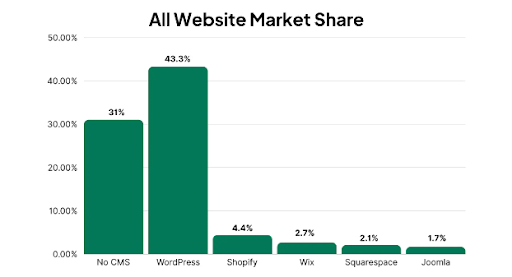
Setting up a local WordPress environment is one of the smartest moves you can make as a developer, designer, or website owner. As the saying goes, “better safe than sorry,” and developing locally keeps your workflow safe, speedy, and stress-free. In fact, WordPress powers 43.3% of all websites globally, which means mastering local development is practically a superpower.
In this comprehensive guide, you will learn how to choose the right software, configure your server stack, and master the migration process from your desktop to the live web. Apart from that, this blog will help you eliminate downtime, slash your development time in half, and provide a professional framework that ensures your live site remains secure while you innovate behind the scenes.
What is Local WordPress? (And Why You Need It)
Before we dive into the “how-to,” let’s clear the air about local wordpress. Simply put, it is a WordPress installation that runs on your personal computer’s hard drive rather than a remote server in a data center. It lets you test themes, plugins, new layouts, and even build entire websites offline.
Key Benefits of Local WordPress Development
Developing locally isn’t just about safety; it’s about hitting your stride in terms of productivity. It offers–
- Lightning Speed: Since files are served from your SSD, page loads are near-instant. There is no “uploading via FTP” every time you change a line of CSS.
- Offline Access: Whether you are on a plane or in a cafe with spotty Wi-Fi, your WordPress local development environment stays active.
- Security Playground: You can test security plugins for WordPress locally to see how they interact with your custom code before deployment.
Research shows that a 1-second delay in page load time can reduce conversions by 7%. By using a local setup, you ensure your site is fully optimized for speed before it ever touches the web.
Tools You Need for Local WordPress Development
You can’t just “install” WordPress on Windows or Mac like a regular app; it needs a stack (PHP, MySQL, and a Web Server). Thankfully, local WordPress software has come a long way.
There are several tools that help you set up a local server.
This includes popular options like Local by Flywheel, XAMPP, WAMP, MAMP, and DevKinsta. These tools essentially simulate the hosting environment on your computer.
If you’re planning complex projects or enterprise web apps, consider partnering with WordPress Development Services providers to ensure top-tier architecture.
Comparison: Best Local Server Tools (Table)
| Tool | OS Support | PHP Versions | Ease of Use | Best For |
| Local (WP) | Win/Mac | 7.4–8.3 | ⭐⭐⭐⭐⭐ | Beginners & Agencies |
| XAMPP | Win/Mac/Linux | 7.x–8.x | ⭐⭐⭐ | Developers |
| MAMP | Win/Mac | 7.x–8.x | ⭐⭐⭐⭐ | Mac Users |
| DevKinsta | Win/Mac/Linux | 8.x | ⭐⭐⭐⭐ | Kinsta Users |
| WAMP | Windows | 7.x–8.x | ⭐⭐ | Windows Developers |
For most users, Local (formerly Local by Flywheel) is the best local server for WordPress because it abstracts the technical headache. If you’re looking to set up a local WordPress environment without touching a terminal, this is your best bet.
Step-by-Step Guide to Set Up Local WordPress Site
Setting up a local WordPress environment is the perfect way to build, test, and experiment with websites safely without touching your live site or paying for hosting. Whether you’re a beginner building your first portfolio project or a seasoned developer customizing a complex feature, following a structured workflow makes all the difference.
Below is a detailed breakdown of how to setup local WordPress environment using popular tools like Local, XAMPP, and MAMP.
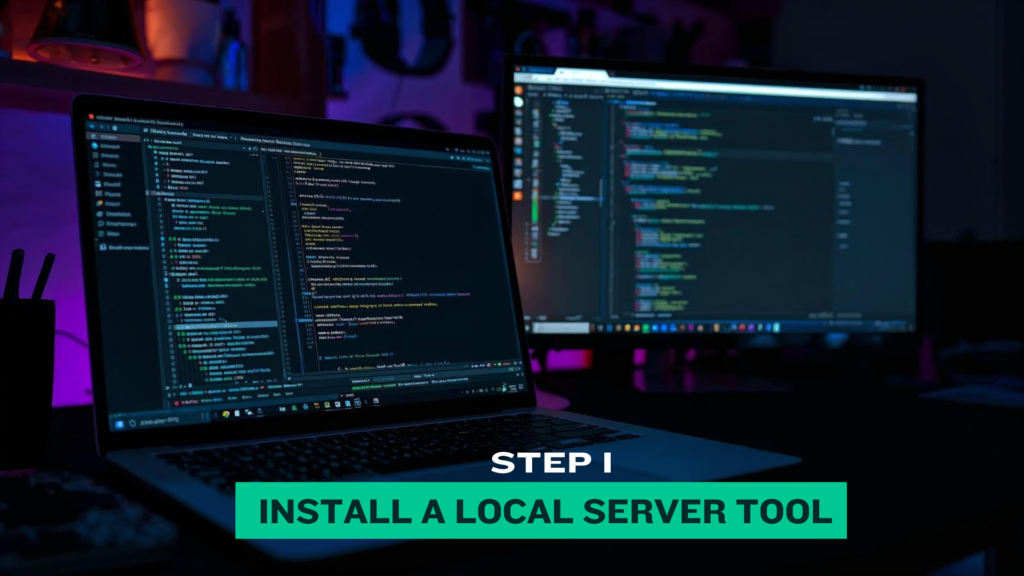
Step 1: Install a Local Server Tool
The first step in creating a local WordPress site begins with choosing and installing a local server application. Since WordPress relies on PHP, MySQL, and Apache/Nginx, your computer needs these components to run it like a real server.
Choose a Tool (Local, XAMPP, or MAMP)
a. Local by Flywheel
This is the simplest option for beginners. Local provides an intuitive dashboard, one-click site creation, SSL support, and database access. These are all packed into a clean interface. Installation is straightforward:
- Download Local for Windows/Mac.
- Install the application.
- Open it and click “Create New Site.”
b. XAMPP
XAMPP is a developer favorite for its flexibility and control over Apache, MySQL, and PHP versions. To install XAMPP:
- Download it from the Apache Friends website.
- Install and launch the XAMPP Control Panel.
- Start “Apache” and “MySQL” services.
c. MAMP (Mac Users Prefer This)
MAMP is incredibly stable and ideal for macOS users.
- Download MAMP.
- Drag it to Applications and open it.
- Start the servers from the start/stop page.
Creating the Local Root Directory
Once your server tool is installed, you need a folder where your local sites will live.
- For Local, this is generated automatically.
- For XAMPP, the root directory is usually:
C:/xampp/htdocs/ - For MAMP, it is typically:
Applications/MAMP/htdocs/
Inside this directory, you’ll create a folder for your new site, something like /mytestsite, /portfolio, or /client-demo. This will serve as the home for all WordPress files, themes, plugins, and uploads.
Step 2: Download WordPress
With your server environment ready, the next step is downloading WordPress.
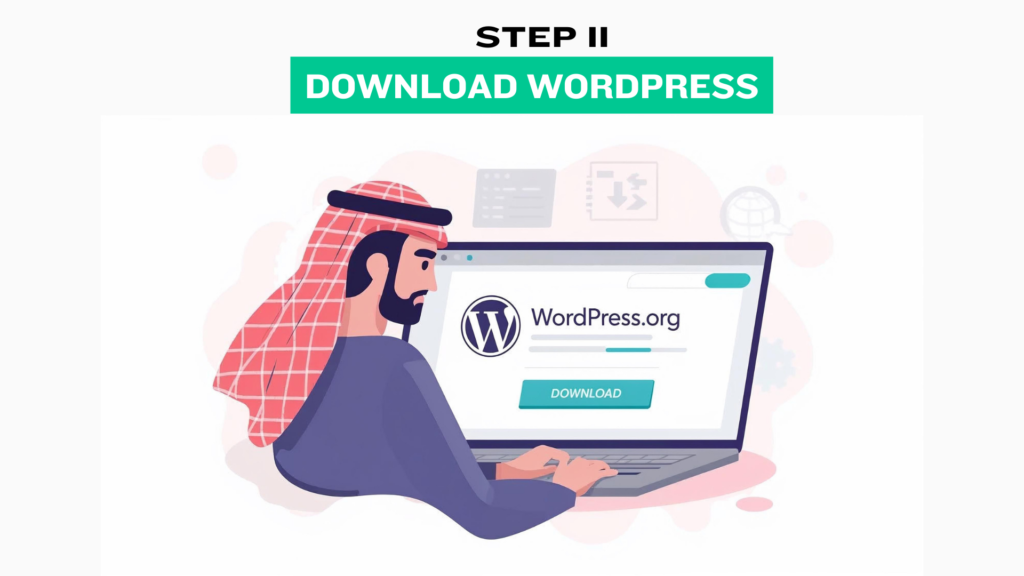
Download From the Official Source
Always download the CMS from the official website: wordpress.org/download
Click “Download WordPress,” and you’ll receive a ZIP file containing everything needed to run your site.
Extract Files Into the Root Folder
Unzip the downloaded file. You’ll see a folder named “wordpress.”
- Rename the folder to something more descriptive, such as localproject or myblog.
- Move this folder into your server’s root directory (htdocs or Local’s auto-generated folder).
This sets the foundation for the next steps, ensuring WordPress can connect properly to your server.
Step 3: Create a Database
WordPress cannot run without a MySQL database. Creating one is easy using phpMyAdmin, the default database manager for Local, XAMPP, and MAMP.
Using phpMyAdmin
Open:

Once inside phpMyAdmin:
- Click “Databases.”
- Enter a database name (e.g., localproject_db).
- Choose “utf8mb4_unicode_ci” for best compatibility.
- Click “Create.”
Database Configuration Basics
- Database Name: what you created (localproject_db)
- Username: normally root for local servers
- Password: often blank on XAMPP or “root” for MAMP
Local by Flywheel auto-creates databases, but you can still view them in its built-in Adminer or TablePlus integration.
Step 4: Configure wp-config.php
Now it’s time to connect WordPress files to the database.
Database Connection
Inside your WordPress folder:
- Locate wp-config-sample.php.
- Rename it to wp-config.php.
- Open it in any code editor (VS Code, Sublime, Notepad++).
- Find the following lines:
Replace them with your database credentials. For example:
- DB_NAME: localproject_db
- DB_USER: root
- DB_PASSWORD: “ (empty for XAMPP)
Adding Unique Security Keys
Search for “Authentication Unique Keys and Salts.” Replace them using the official generator: https://api.wordpress.org/secret-key/1.1/salt/
This strengthens your site’s local security and prevents session conflicts.
Step 5: Complete Installation Through Browser
This step completes the WordPress installation.
Finishing Installation
Open your browser and go to:
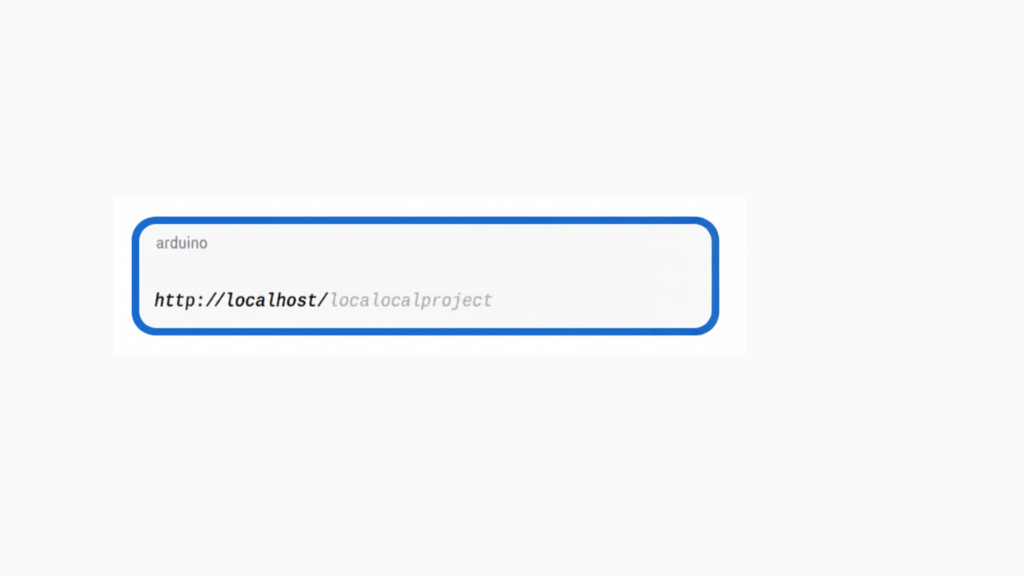
This will launch WordPress’s famous 5-minute installation wizard.
Steps:
Select your language.
Enter site title, admin username, password, and email.
Click “Install WordPress.”
Login to the Admin Panel
Once setup is done, log in at:
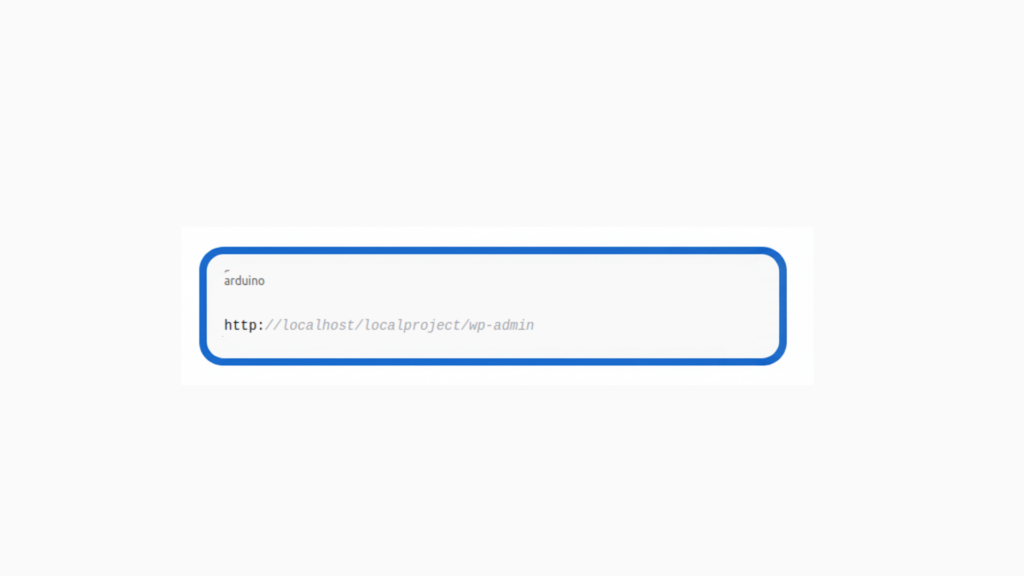
You now have a fully functional local WordPress setup running on your computer!
Step 6: Configure Basic WordPress Settings
To complete your setup local wordpress environment, you’ll want to customize a few essential settings.
URL Settings
Check Settings → General
- Ensure “WordPress Address” and “Site Address” use localhost.
Permalinks
Go to Settings → Permalinks
- Choose “Post Name” for SEO-friendly URLs.
Media Settings
Under Settings → Media
- Adjust image sizes.
- Ensure media uploads are stored in the correct directory.
How to Install Themes, Plugins & Customize Local WordPress
Once your local WordPress setup is ready, the next step is adding themes, plugins, and basic customizations. This is where your site begins to take shape.
Installing Themes
You can install themes directly from the WordPress repository:
- Go to Appearance → Themes → Add New
- Search for a theme and click Install → Activate
If you have a premium or custom theme, upload it via Upload Theme and activate it. This makes it easy to test layouts and designs inside your setup local WordPress environment before publishing.
Installing Plugins
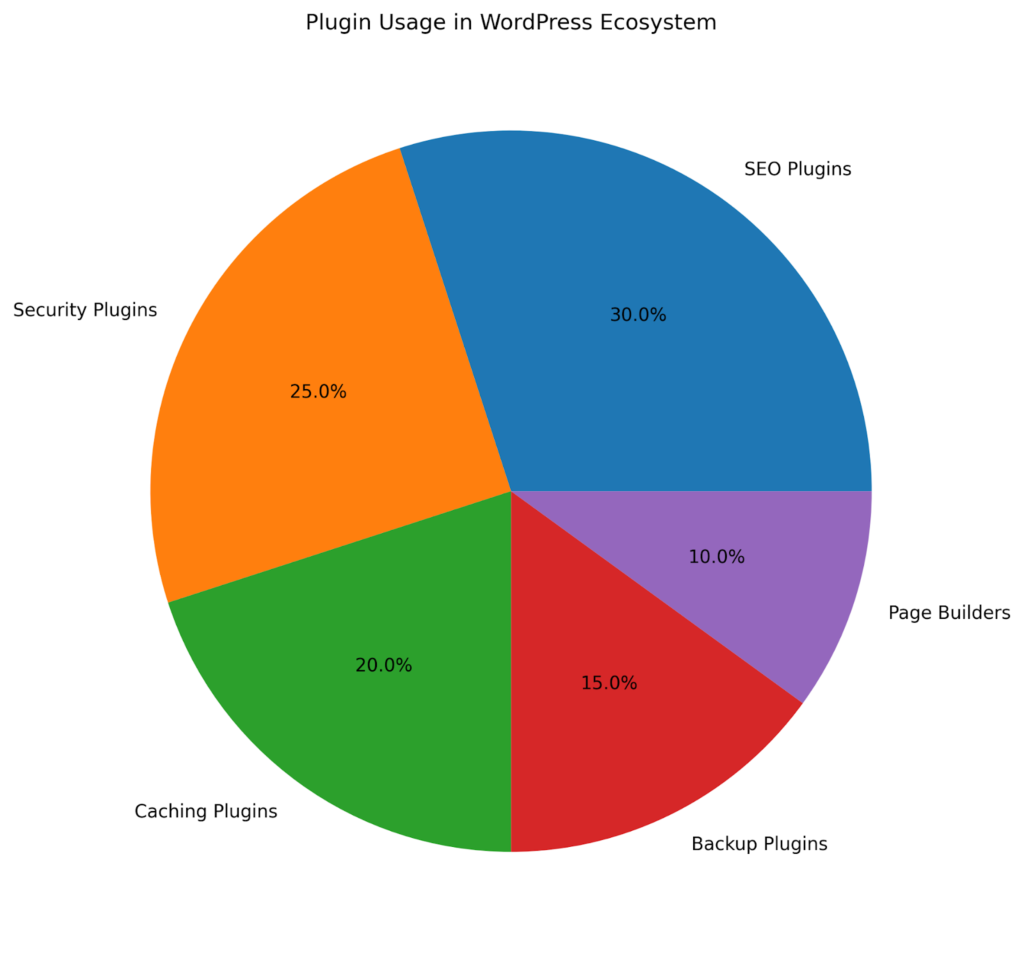
Plugins add functionality to your site, such as SEO tools, forms, caching, security, and more.
- Go to Plugins → Add New
- Search for and install any plugin
- Or upload a ZIP file if you’re using a premium plugin
Testing security plugins for wordpress locally ensures everything works smoothly before adding them to your live site.
Basic Customization
Once themes and plugins are active, go to Appearance → Customize to adjust:
- Colors
- Fonts
- Header/footer layout
- Menus
- Widgets
How to Share a Local WordPress Site With Clients
Once your local WordPress project is ready for feedback, you may need to share it with clients or teammates. Since local sites aren’t publicly accessible, you’ll need a quick way to share a live preview with others.
1. Use Tunneling Tools (Fastest Method)
Tools like LocalWP Live Links, Ngrok, or Cloudflare Tunnels create a temporary public URL for your local site. Just share the link, and clients can view the website in real time—no hosting needed.
2. Export and Upload to Staging
If you prefer a more stable preview environment, export your site using a migration plugin and upload it to a staging server. This is ideal when the client needs a slower, more reliable review workflow.
3. Share Screen Recordings
For quick demonstrations, record short walkthrough videos using tools like Loom. It helps clients understand functions without having to access the site themselves.
4. Use Collaboration Tools
Plugins like WP Staging or InstaWP allow you to spin up temporary hosted environments for demos and testing.
How to Move WordPress From Local Server to Live Site
Once your website is ready in the local WordPress environment, the final step is to move it to the live server. This process is known as migration, and doing it correctly ensures your site looks and works exactly the same online as it does locally.
1. Manual Migration (Most Common Method)
This method gives you full control over files and the database.
Step A: Export the Database
- Open phpMyAdmin
- Select your local database
- Click Export → Quick → Go
Step B: Upload WordPress Files
Use an FTP client (FileZilla/Cyberduck) to upload everything from your local project folder to your hosting server’s public_html directory.
Step C: Create a Live Database
Inside your hosting panel (cPanel/Plesk):
- Create a new MySQL database
- Add a user and assign privileges
Step D: Edit wp-config.php
Update:
- DB_NAME
- DB_USER
- DB_PASSWORD
- DB_HOST (often localhost)
Step E: Fix URLs
Use a search-replace tool or plugin to replace:
- localhost/project → yourdomain.com
2. Use Migration Plugins (Fastest for Beginners)
If you want a simpler path, plugins like:
- Duplicator
- All-in-One WP Migration
- WP Migrate
You can export your entire local site and import it into your hosting account with just a few clicks. This minimizes manual steps and reduces the chance of errors.
3. When to Use a Staging Site
For clients or large websites, move the project to a staging environment first. This acts as a safe middle ground before going fully live.
WordPress Local Development Best Practices
Working inside a local WordPress environment gives you the freedom to experiment, but following the right best practices ensures your workflow stays fast, clean, and reliable. Here are the essentials every developer should follow.
1. Keep Everything Updated
Regularly update WordPress core, themes, and plugins. Most performance issues and vulnerabilities come from outdated components, so staying updated keeps your site stable.
2. Use Child Themes for Customization
Never modify a parent theme directly. Using a child theme protects your changes during updates and keeps your code organized.
3. Organize Your Project Files
Maintain a clean folder structure inside wp-content, especially when developing multiple themes or custom plugins. Clear naming and organized directories save hours of troubleshooting later.
4. Take Regular Backups
Even in a local setup, backups matter. Use tools like UpdraftPlus or local manual backups to ensure you can roll back anytime.
5. Use HTTPS Locally
Enable SSL inside LocalWP or your server tool to simulate real hosting conditions. Many modern plugins require secure URLs to function properly.
6. Maintain a Clean Database
Over time, unused revisions, spam comments, and transients can slow your site down. Use optimization plugins or WP-CLI commands to clean your database periodically.
7. Commit Early, Commit Often (Use Git)
Version control is your safety net. Commit changes frequently and document updates clearly, especially when collaborating with others.
Common Issues & How to Fix Them
Even with a smooth local WordPress workflow, you may run into a few common issues, especially during setup, testing, or migration. The good news? Most problems have quick fixes.
1. Database Connection Errors
Cause: Wrong database name, username, or password.
Fix:
- Recheck details in wp-config.php
- Make sure MySQL is running
- Confirm user privileges in phpMyAdmin
2. White Screen of Death (Blank Page)
Cause: Plugin/theme conflict or PHP error.
Fix:
- Enable WP_DEBUG
- Disable all plugins, then activate one by one
- Switch temporarily to a default theme
3. Permalink Issues (404 Errors)
Cause: Broken rewrite rules after migration.
Fix:
- Go to Settings → Permalinks
- Click Save Changes (no need to modify anything)
4. Stylesheets Not Loading
Cause: Wrong paths after migration or caching issues.
Fix:
- Replace old URLs using a search-replace tool
- Clear WordPress + browser cache
- Check file permissions via FTP
5. Local Server Not Starting
Cause: Port conflict (often port 80).
Fix:
- Stop apps like Skype, IIS, or VMware
- Change Apache port in XAMPP/MAMP
- Restart the server tool
6. Media Upload Errors
Cause: Incorrect upload folder permissions.
Fix:
- Set /wp-content/uploads/ to writable (755 or 775)
- Check PHP limits (max_upload_size, post_max_size)
7. HTTPS or Mixed Content Warnings
Cause: Local SSL not activated.
Fix:
- Enable SSL in LocalWP or your server tool
- Replace http:// URLs with https://
How CSSChopper Simplifies the Entire Local WordPress Setup Process
Setting up a local WordPress environment may look simple on the surface, but the process can quickly become complex, especially when dealing with server tools, database configurations, SSL setup, debugging, and plugin compatibility.
This is where CSSChopper steps in. Their experienced WordPress developers streamline every stage of the setup, ensuring your local environment mirrors a real-server configuration for accurate testing and smooth development.
From choosing the right local server tool to configuring databases, optimizing performance, and resolving technical conflicts, CSSChopper handles it all with precision. Instead of navigating this technical maze alone, you can hire wordpress developers from CSSChopper to set up a reliable, high-performance local WordPress environment tailored to your project needs.
Tags
Categories
Recent Posts
Popular Posts
- How to Choose a Reliable Offshore Development Partner?
- Transforming Web Development with HTMX’s Declarative Approach for Dynamic UIs
- Why Your Conversion Funnel Needs a Composable Commerce Solution?
- How to Outsource Web Development in 2025: Complete Guide
- What are the Top Web Development Trends for 2025?